ROI Tools
The options on the ROI Tools panel let you create new regions of interest and multi-ROIs, define intensity ranges, apply operations to modify regions of interest and datasets, and export image masks. Advanced operations, such as watersheds and generating scalar values, are available in the context menu for selected ROIs and multi-ROIs (see ROI Pop-Up Menu and Multi-ROI Pop-Up Menu).
ROI Tools panel

A. Basic B. Import C. Range D. Morphological operations E. Operations F. Image operations
 Basic
Basic
The Basic tools available in the ROI Tools panel let you create new regions of interest and multi-ROIs, clear and invert labeled voxels, as well as undo the last manipulation that was performed.
Basic
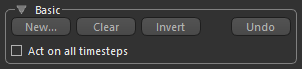
| Description | |
|---|---|
| New |
Lets you create a new region of interest (see Creating New Regions of Interest) or multi-ROI (see Creating New Multi-ROIs).
Act on all timesteps… In cases in which you create regions of interest on 4D image data, you can now choose to have applicable operations — such as Clear, Invert, and Undo, as well as defined ranges, morphological operations, and image operations — applied to all timesteps automatically. |
| Clear | Clears every labeled voxel within the selected region of interest or multi-ROI. |
| Invert |
If clicked, every voxel that is not labeled in the selected region of interest will be labeled, while every voxel that was previously labeled will be unlabeled.
Note This option is not available for multi-ROIs. |
| Undo |
Undoes the last manipulation that was performed on the region of interest or multi-ROI.
Note Some segmentation operations cannot be reversed by clicking Undo. |
Creating New Regions of Interest
Before you use a manual segmentation tool, you must first create an empty region of interest or multi-ROI. Shapes for the new object can either be taken from the dataset you intend to segment, or from another dataset, region of interest, or multi-ROI. You can create new regions of interest whenever you need to partition an image into additional segments.
- Click the New button in the Basic box.
The New Region of Interest dialog appears.
- Enter a name and choose a highlight color for the new region of interest in the New Region of Interest dialog.
- Select a geometry in the Geometry drop-down list.

The geometry of the region of interest can be chosen from any available dataset, region of interest, or multi-ROI.
- Click OK.
The new ROI is added to the Data Properties and Settings panel (see ROI Properties and Settings).
Creating New Multi-ROIs
Before you use a manual segmentation tool, you must first create an empty multi-ROI. Shapes for the new object can either be taken from the dataset you intend to segment, or from another dataset, region of interest, or multi-ROI. You can also choose the number of classes for the new multi-ROI.
- Click the New button in the Basic box.
The New Region of Interest dialog appears.
- Enter a name for the new multi-ROI in the New Region of Interest dialog.
- Select a geometry in the Geometry drop-down list.

The geometry of the multi-ROI can be chosen from any available dataset, region of interest, or multi-ROI.
- Check the Create as Multi-ROI option and then choose the required number of classes.

Note You add and remove classes from a multi-ROI in Data Properties and Settings panel after it is created.
- Click OK.
The new multi-ROI is added to the Data Properties and Settings panel (see Multi-ROI Properties and Settings).
Import Tools
The options in the Import box allow you to import ROIs, as well as to load ROI templates.
Import tools

- Click the From File button.
- Navigate to and select the required region of interest in the Load from File dialog.
Note Regions of interest are saved in the ORSObject file format (*.ORSObject).
- Click Open.
The imported ROI is added to the Data Properties and Settings panel.
Range Options
The options in the Range box allow you to define an intensity domain on a dataset and then create a new region of interest in which all voxels within the selected range are labeled (see Creating Threshold Segmentations).
You can also add or remove a range from an ROI or from the selected class of a multi-ROI. Intensity domains are also applicable to other tools, such as the ROI Painter tools, morphological operators, and clipped regions. In this context, any voxel with a value outside the range will not be selectable (see Defining Intensity Ranges).
Morphological Operations
The options in the Morphological operations box let you apply morphological operators to refine regions of interest and multi-ROIs (see Applying Morphological Operations).
Operations
The options in the Operations box let you fill the inner areas of regions of interest and multi-ROIs, as well as add or remove clipped regions (see Applying Operations).
Image Operations
The options in the Image operations box let you overwrite dataset values, split a region of interest at the Otsu threshold, and create a dataset with values that intersect with the ROI (see Applying Image Operations).
Export
Provides options to export regions of interest and multi-ROI classes to meshes (see Exporting ROIs and Multi-ROIs to Meshes) and thickness meshes (see Exporting ROIs and Multi-ROIs to Thickness Meshes).
